Kzb binaries contain contents of your Kanzi Studio projects. To run your Kanzi application on a device, you need to export it as a .kzb binary.
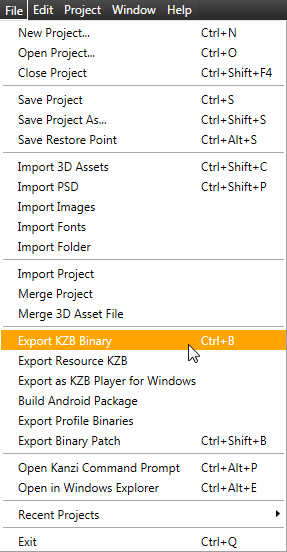
To create a kzb binary from a Kanzi Studio project, open your Kanzi Studio project in Kanzi Studio and select > Export KZB Binary.
Kanzi Studio creates these files:
configuration->binaryName = "<ProjectName>.kzb.cfg"If you export kzb binary of a Kanzi Studio project without C application, Kanzi Studio creates these files in <KanziWorkspace>/Projects/<ProjectName>/Binary, otherwise it creates these files in <KanziWorkspace>/Projects/<ProjectName>/Application/bin.
You can load the content of your Kanzi application from multiple kzb binaries. For example, you can have different profiles in your Kanzi Studio project to match different screen sizes of your target devices. You can then add a C application to your Kanzi project to load only the binary that matches the screen size of user's device. See Profiles.
To use multiple kzb binaries created with profiles:
configuration->binaryName = "Hello_World_800x480.kzb.cfg"
You can create a Kanzi application that loads its content from multiple kzb binaries. This way you can combine multiple Kanzi Studio projects into one Kanzi application when a user starts your Kanzi application.
When you want to use the same scene graph for your Kanzi application, use the same project name for all the projects you want to combine into one Kanzi application. When combining projects with the same name, each project item in the same location of the scene graph and the same name as a project item in another kzb file is overwritten by the item from the kzb file that is listed last in the kzb.cfg file. For example, if you have two kzb files named ProjectOne and each contains an object named Screen in the same location in the scene graph, Kanzi uses the Screen object contained by the project listed last in the kzb.cfg. You can achieve a similar result by merging several Kanzi Studio projects in Kanzi Studio. See Merging projects.
When you want to use different scene graphs for your Kanzi application, use different project names for each project you want to combine into a single Kanzi application. You can combine projects with different names only in code.
To create and application from kzb binaries from several Kanzi Studio projects with different names:
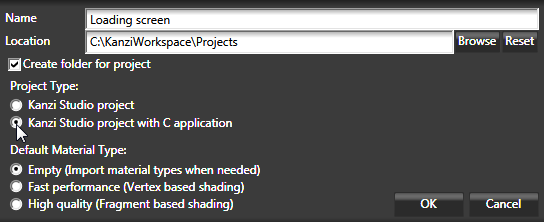
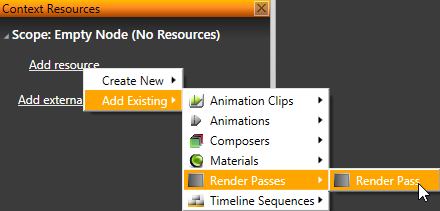
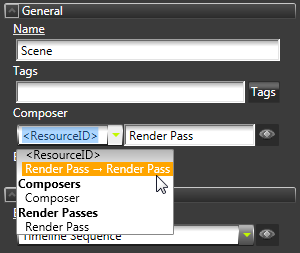
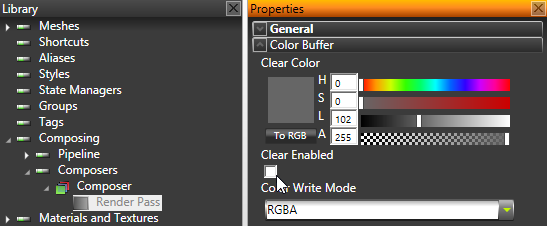
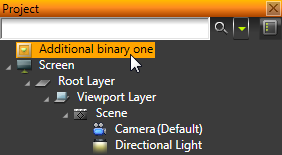
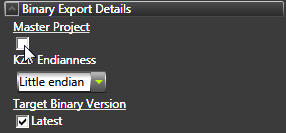
Loading_screen.kzb
Additional_binary_one.kzb
Additional_binary_two.kzb
// Kanzi uses the resource manager to acquire resources from kzb,
// and to add the kzb binaries to the resource manager.
#include <user/resource/kzu_resource_manager.h>
// UI domain is a common container for the most of Kanzi structures,
// such as, common resource manager, task scheduler, and so on.
#include <user/ui/kzu_ui_domain.h>
// Memory manager is required for holding the memory allocations,
// and many constructor functions require it.
#include <core/memory/kzc_memory_manager.h>
// Kanzi uses kzu_prefab.h to instantiate prefab templates
#include <user/ui/templates/kzu_prefab.h>
// Kanzi uses kzu_object.h to modify the object scene graph
#include <user/scene_graph/kzu_object.h>
// Kanzi uses kzu_layer.h to access the root layer in this example.
#include <user/layers/kzu_layer.h>
KZ_CALLBACK kzsError loadAdditionalBinaries(struct KzaApplication* application)
{
	// Gets the resources from the kzb binaries and instantiates them as a prefab template.
	struct KzuResource* prefabResource;
	struct KzuLayer* rootLayer;
	rootLayer = kzaApplicationGetRootLayer(application);

	// First binary
	// Acquires a resource from the resource manager based on the provided URL.
	kzuResourceManagerAcquireResource(kzuUIDomainGetResourceManager(
		kzaApplicationGetUIDomain(application)),
		"kzb://Additional_binary_one/Prefabs/Viewport Layer", &prefabResource);
	{
		struct KzuObjectNode* prefabInstanceNode;
		// Instantiates a prefab template.
		kzuPrefabTemplateInstantiate(kzuPrefabTemplateFromResource(prefabResource),
			"RootOne", &prefabInstanceNode);
		// Adds the instanced viewport layer as a child of the root layer.
		kzuObjectNodeAddChild(kzuLayerToObjectNode(rootLayer), prefabInstanceNode);
	}

	// Second binary
	// Acquires a resource from the resource manager based on the provided URL.
	kzuResourceManagerAcquireResource(kzuUIDomainGetResourceManager(
		kzaApplicationGetUIDomain(application)),
		"kzb://Additional_binary_two/Prefabs/Viewport Layer", &prefabResource);
	{
		struct KzuObjectNode* prefabInstanceNode;
		// Instantiates a prefab template.
		kzuPrefabTemplateInstantiate(kzuPrefabTemplateFromResource(prefabResource),
		"RootTwo", &prefabInstanceNode);
		// Adds the instanced viewport layer as a child of the root layer.
		kzuObjectNodeAddChild(kzuLayerToObjectNode(rootLayer), prefabInstanceNode);
	}

	kzsSuccess();
}kzApplicationConfigure after loading the master kzb binary, call the function that loads the additional kzb binaries.KZ_CALLBACK void kzApplicationConfigure(const struct KzaSystemProperties* systemProperties,
struct KzaApplicationProperties* configuration)
{
configuration->memoryPoolSize = 20 * 1024 * 1024;
// Loads the master kzb binary.
configuration->binaryName = "Loading_screen.kzb.cfg";
// Loads the additional kzb binaries when the master project loads.
configuration->onProjectLoaded = loadAdditionalBinaries;
configuration->onKeyInputEvent = keyInputEventHandler;
}